
ログイン・新規登録の方法を教えてください Login & Sign-up Manual
■ ログイン画面の場所
https://yamatan.net/auth
(画面右上のメニューから「ログイン / 新規登録」でも開けます)
────────────────────
STEP 1:ログイン画面を開く
────────────────────
既にアカウントをお持ちの方は、以下のいずれかでログインできます。
① Google アカウントで 1 クリックログイン
「Google で続ける」ボタンを押すだけで完了します(コード入力不要)。
② メールアドレスでログイン
・「ログイン」タブが選ばれていることを確認
・メールアドレスを入力 →「ログイン」ボタンを押す
・入力したアドレスに 6 桁の認証コードが届きます
※ 未登録のメールアドレスを「ログイン」タブで入力するとエラーになります。
その場合は「新規登録」タブに切り替えてください(入力したメールはそのまま残ります)。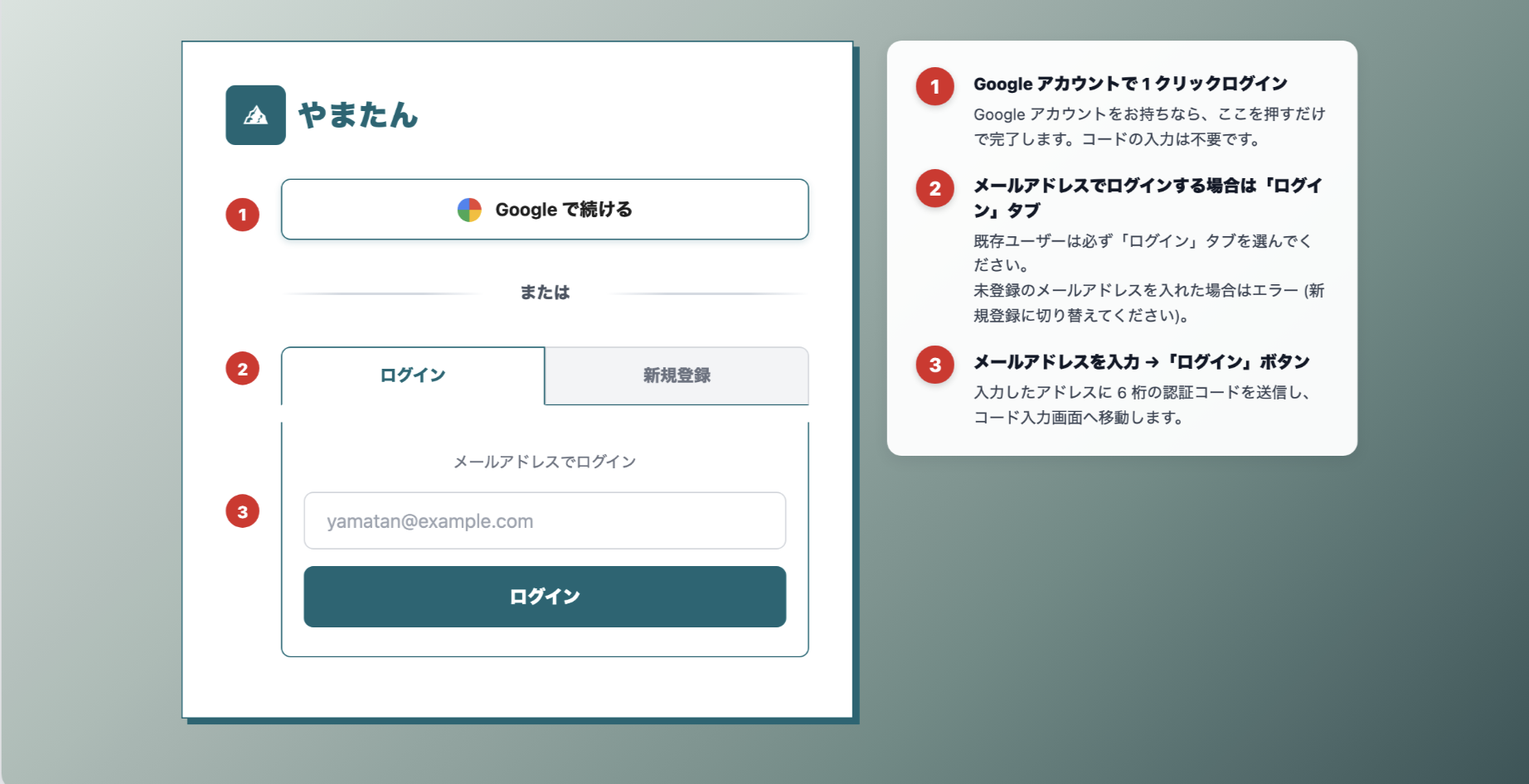
────────────────────
STEP 2:新規登録の場合(初めての方)
────────────────────
① 「新規登録」タブをクリックして切り替える
② メールアドレスを入力
③ 「新規登録」ボタンを押す
→ 入力したアドレスに 6 桁の認証コードが届きます
※ 既に登録済みのメールアドレスを「新規登録」タブで入力するとエラーになります。
その場合は「ログイン」タブに切り替えてください。
※ Google アカウントの場合は STEP 1 ① と同じく「Google で続ける」で新規登録もできます。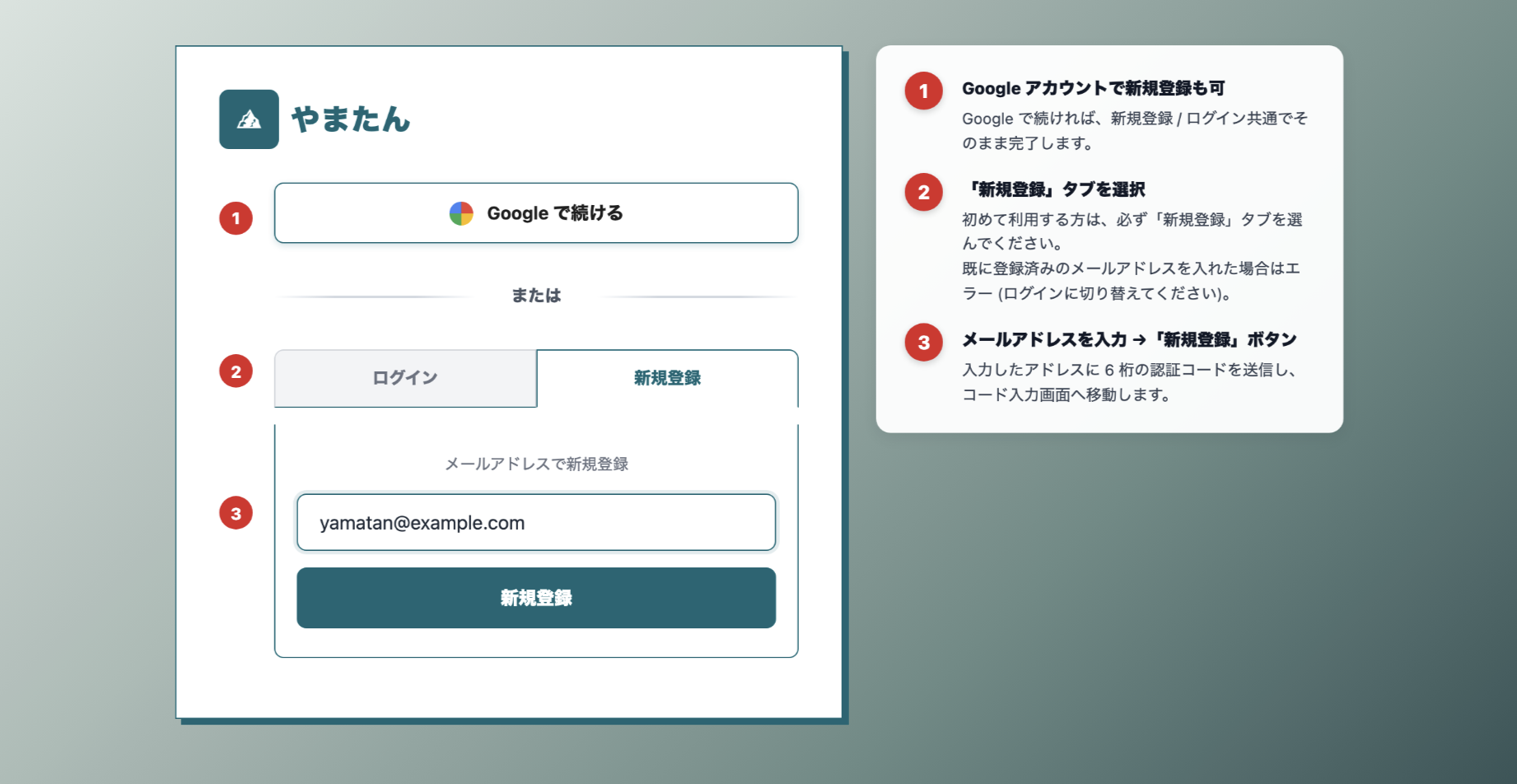
────────────────────
STEP 3:届いたメールから 6 桁の認証コードを確認
────────────────────
・件名:Yamatan 認証コード
・差出人:noreply@yamatan.net
・本文に【認証コード】として 6 桁の数字が記載されています
※ メールが届かない場合は、迷惑メールフォルダもご確認ください。
※ 認証コードの有効期限は 5 分です。期限を過ぎた場合は STEP 4 の「コードを再送信する」から再発行してください。
※ 再送信した場合、最新のメールに記載されたコードのみ有効です。古いメールのコードは使えません。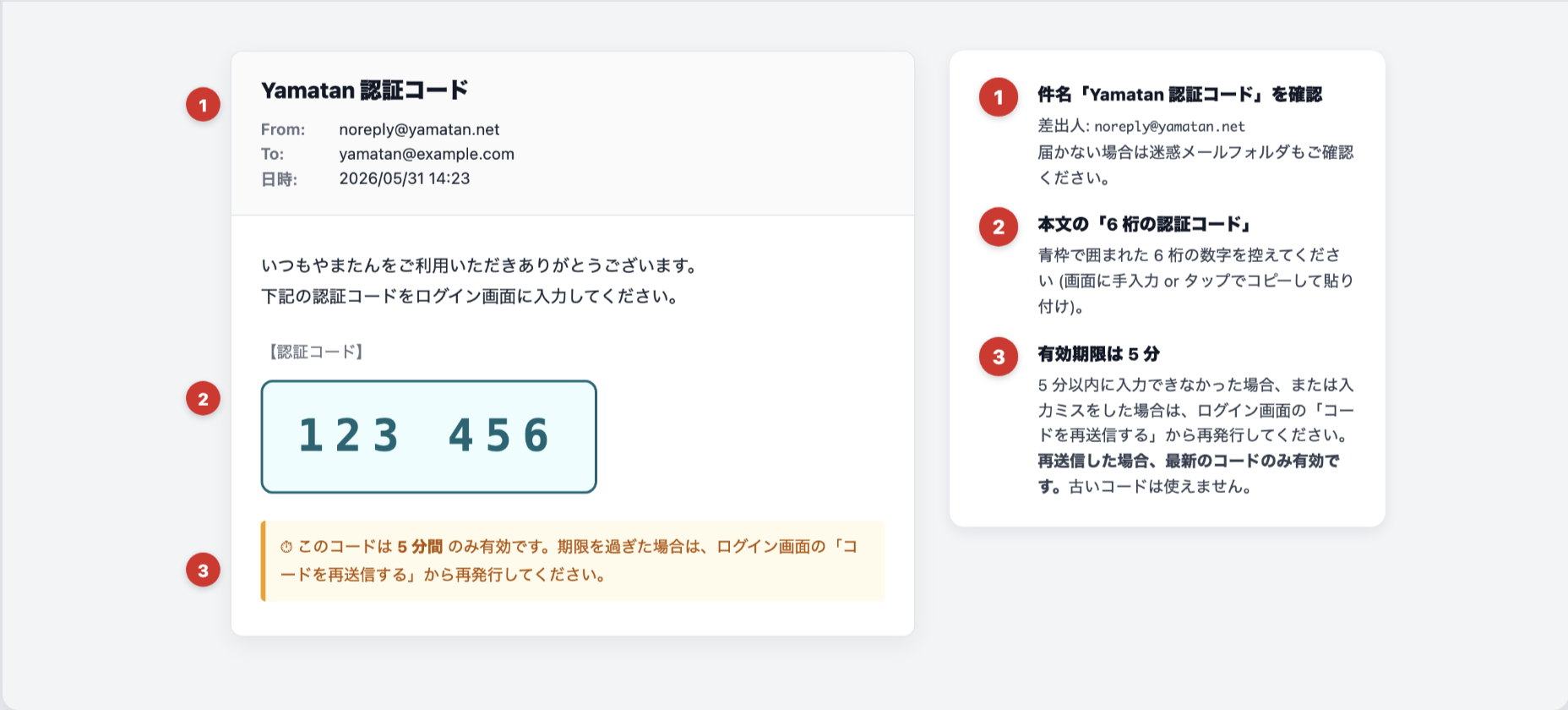
────────────────────
STEP 4:認証コード入力画面で 6 桁を入力
────────────────────
・URL:https://staging.yamatan.net/auth/verify-otp
・「確認コード (6 桁の数字)」欄に、メール本文の 6 桁を半角で入力
・6 桁すべて入力すると 自動で認証 され、ログインが完了します
(手動で「ログイン」ボタンを押しても OK)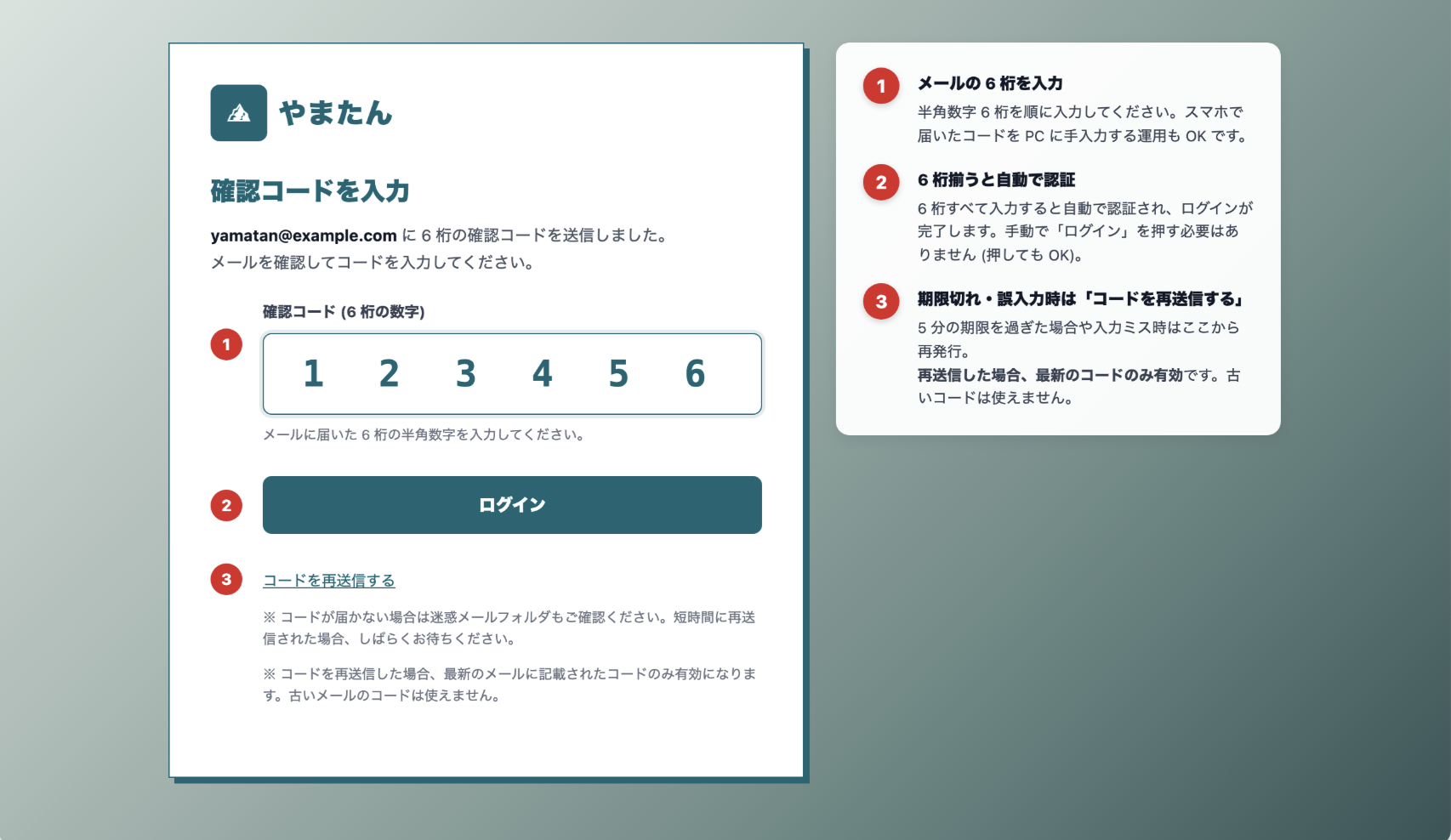
■ うまくいかない場合
・コードが届かない → 迷惑メールフォルダを確認、しばらく待つ、または「コードを再送信する」
・コードを間違えた → もう一度入力(または「コードを再送信する」で新しいコードを発行)
・短時間に何度も再送信した場合は、少し時間を置いてからお試しください
■ ログイン完了後
・一般ユーザー:マイページ・予約確認画面へ
[Login & Sign-up Manual]
■ Where to open the login screen
https://staging.yamatan.net/auth
(You can also open it from the top-right menu via "Login / Sign up".)
────────────────────
STEP 1: Open the login screen
────────────────────
If you already have an account, you can log in either way:
(1) One-click login with your Google account
Just press the "Continue with Google" button (no code required).
(2) Log in with your email address
- Make sure the "Login" tab is selected
- Enter your email address, then press the "Login" button
- A 6-digit verification code will be sent to that address
* If you enter an unregistered email on the "Login" tab, you will see an error.
In that case, switch to the "Sign up" tab (your entered email will be kept).
────────────────────
STEP 2: For new users — sign up
────────────────────
(1) Click the "Sign up" tab to switch
(2) Enter your email address
(3) Press the "Sign up" button
-> A 6-digit verification code will be sent to that address
* If you enter an already-registered email on the "Sign up" tab, you will see an error.
In that case, switch to the "Login" tab.
* For Google accounts, you can also sign up via "Continue with Google" (same as STEP 1 (1)).
────────────────────
STEP 3: Check the 6-digit verification code in the email
────────────────────
- Subject: Yamatan verification code
- From: noreply@yamatan.net
- The body contains a 6-digit number labeled as your [verification code]
* If the email does not arrive, please also check your spam / junk folder.
* The verification code is valid for 5 minutes. After it expires, use "Resend code" on the next screen (STEP 4).
* When you request a resend, only the code in the latest email is valid. Codes from older emails will no longer work.
────────────────────
STEP 4: Enter the 6 digits on the verification screen
────────────────────
- URL: https://staging.yamatan.net/auth/verify-otp
- Enter the 6 digits from the email into the "Verification code (6 digits)" field (half-width numbers)
- Once all 6 digits are entered, you will be authenticated automatically and logged in.
(You can also press the "Login" button manually.)
■ If something goes wrong
- Code does not arrive -> Check your spam folder, wait a moment, or press "Resend code"
- Wrong code entered -> Re-enter it (or press "Resend code" to get a new one)
- If you resend the code many times in a short period, please wait a while before trying again
■ After logging in
- General users: My Page / Reservation page